
Great product photos and polished content often start with one simple detail. A clean background. You see it everywhere. TikTok product demos with floating jewelry. Shopify listings with bright white candles. Instagram Reels with smooth makeup transitions. Behind every scroll stopping visual is a background that does not distract.
The good news is that you do not need advanced software to create this look. You do not need Photoshop. You do not need a paid Canva plan. You do not need to spend hours erasing edges by hand.
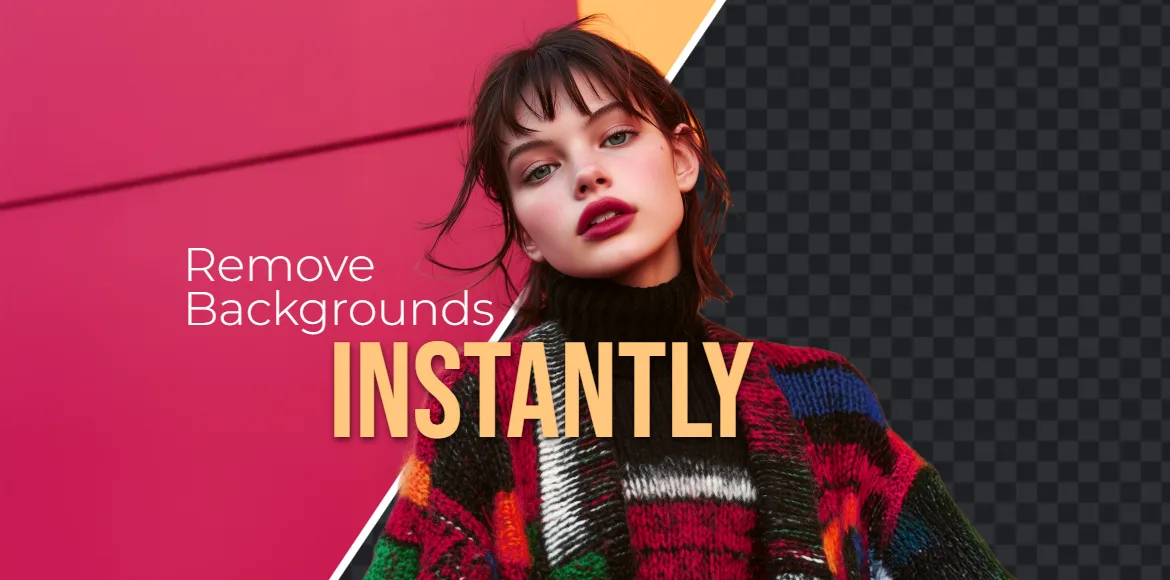
Creators today are choosing fast, free background removal powered by AI. Pixlr AI background eraser gives you clean and accurate cutouts for ecommerce photos, social media content, and product catalogs. You can remove the background from a single image with Pixlr Express AI Cutout or process many images at once with Pixlr Remove BG.
As ecommerce and social selling continue to grow, more small business owners and content creators rely on Pixlr’s AI tools because they deliver high quality results in seconds. Everything runs in your browser, so you can upload, remove, and download without extra steps or technical skills.
Whether you sell on Etsy, film TikTok unboxings, create Reels for beauty content, or build Shopify product pages, this guide shows you how to remove backgrounds with AI and which Pixlr tool works best for your workflow. You will learn how to edit single photos, manage bulk background removal, and keep your visuals clean and consistent.
Why Clean Backgrounds Matter for E-commerce and Creators
For E-Commerce Sellers (Shopify, Etsy, Amazon)
Clean backgrounds are now the standard for professional product photography. Amazon and Google Shopping require white or transparent backgrounds to ensure consistent visuals across all listings. Products with clean, distraction-free backgrounds also earn significantly higher click-through rates, according to the Baymard Institute. When every image in your store matches in lighting, color, and composition, customers trust your brand more. When they do not, buyers notice. A kitchen-table snapshot or messy background can make even a great product look unpolished. Using Pixlr background remover helps sellers create clear, consistent images that convert.
For Content Creators (TikTok, Instagram, YouTube)
Clean or transparent backgrounds give you far more creative freedom. They let your product stand out in overlays, text animations, transitions, and trending templates. TikTok Creative Center highlights how floating product visuals tend to earn more shares because they are eye-catching and easier to remix. The same principle applies to YouTube and Instagram thumbnails. A subject isolated from the background draws the viewer’s attention instantly. By using Pixlr Express AI Cutout or Pixlr Remove BG, creators can produce polished visuals that stand out across every format and platform.
How to Remove Background with AI in Pixlr
Pixlr gives you several ways to remove a photo background, and each option fits a different type of image and workflow. If you need precise control for single photos, Pixlr Express AI Cutout helps you refine edges and restore small details. If you want a fast one click solution, Pixlr AI Remove Background instantly separates your subject so you can add outlines, shadows, or a new background. For larger batches of product photos, Pixlr Remove BG lets you upload many images at once and get clean, consistent cutouts in seconds. Knowing how each feature works helps you choose the right Pixlr background remover for ecommerce photos, social media content, and branded visuals.
Pixlr Express AI Cutout
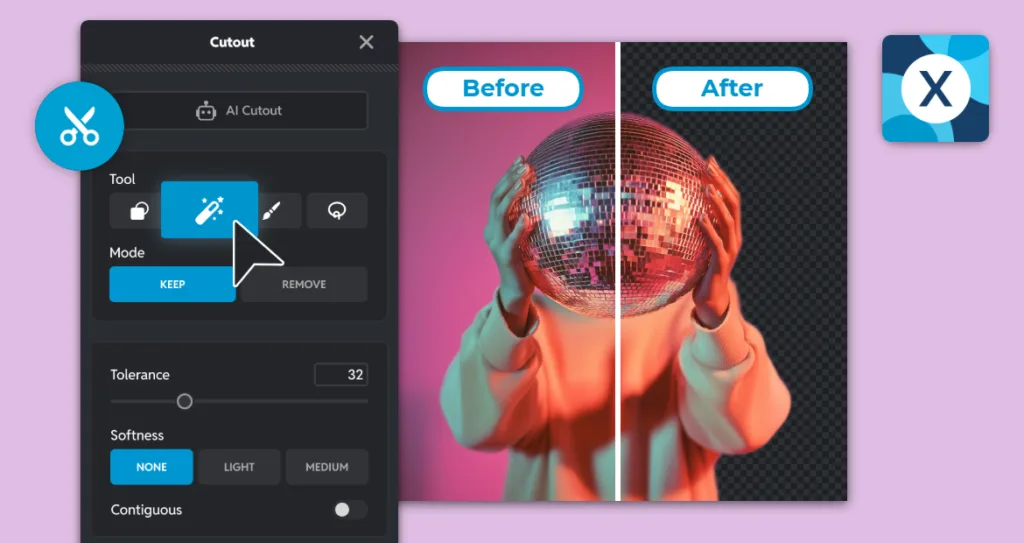
Pixlr Express AI Cutout is ideal for smaller batches of 1 to 3 photos. It works best for single one off product shots, flat lays, portraits, curated social media images, and creator content that need more attention to detail. You start with one click AI Cutout for photos, then refine the results using the built in cutout tools.
Cutout Features Inside Pixlr Express
Magic Cutout
Removes simple backgrounds instantly. Click once and the AI identifies the subject.
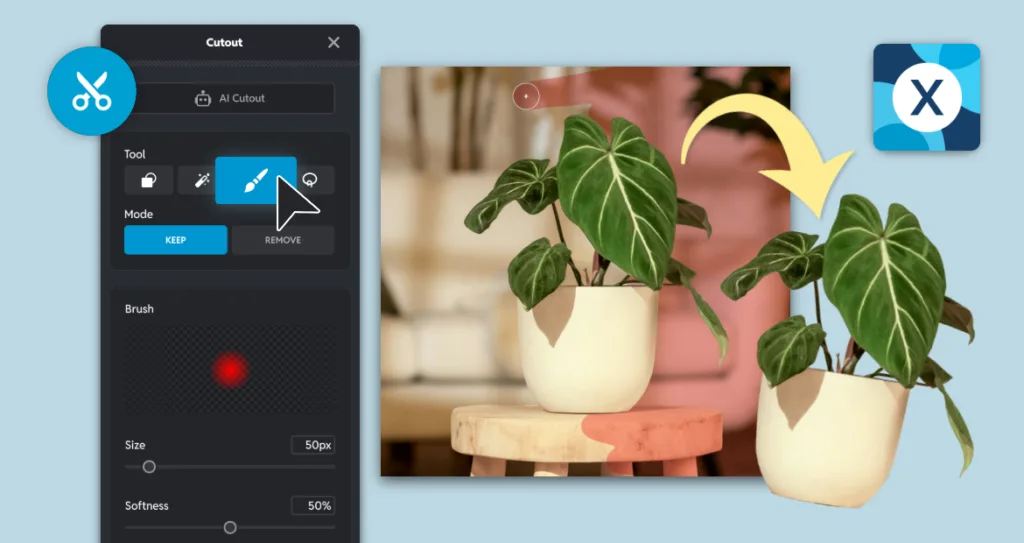
Draw Cutout
Useful for detailed edges such as hair, fur, lace, or leaves. Paint the unwanted areas in red and the AI cleans them up.
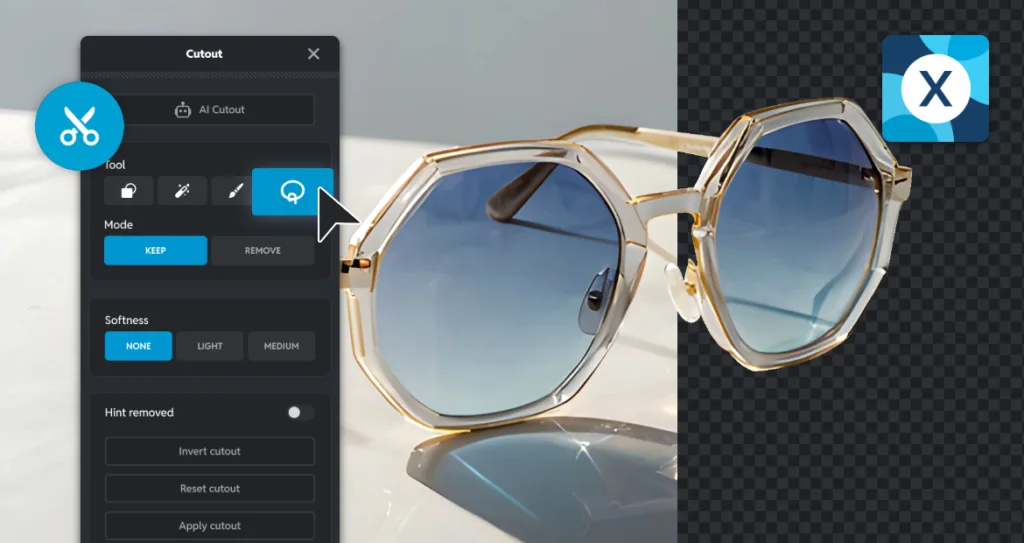
Lasso Cutout
Ideal for precise objects such as bottles, jewelry, sunglasses, or packaging. Trace the outline manually for clean control.
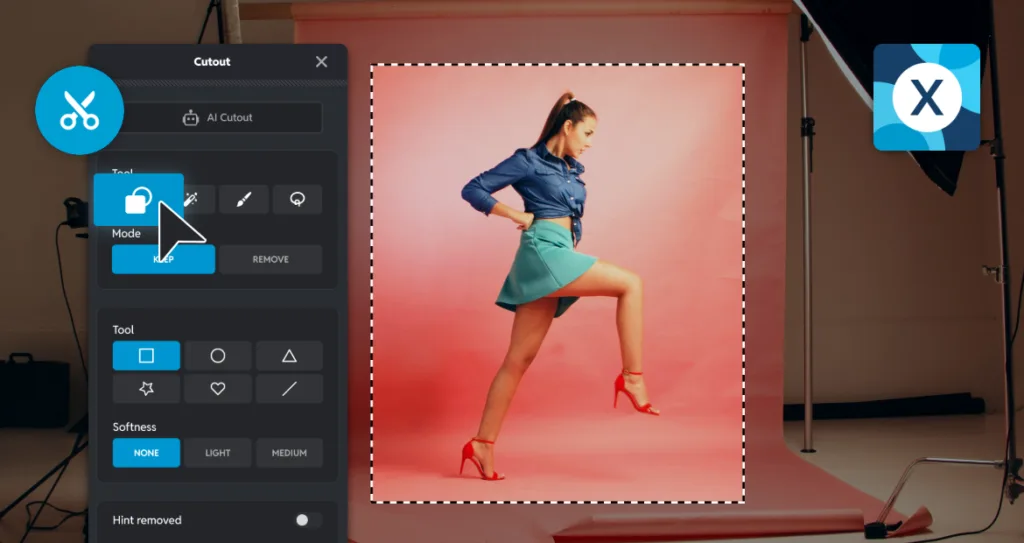
Shape Cutout
Great for removing large backgrounds like tables, walls, and solid studio setups. Drag a rectangle or circle to remove everything inside the selection.
Helpful AI Features
Keep Feature (indicated in green)
Restores any part of the photo that the AI removes by mistake. The green highlight shows the areas you are keeping, which helps you protect important details without starting over or undoing your work.
Remove Feature (indicated in red)
Highlight the areas you want to remove in red. This tool helps you clean up any background sections the AI may have missed. You can switch between Keep and Remove at any time to refine the cutout and shape the edges exactly the way you want.
Hint Remove
Shows a gentle visual guide around the subject as you edit. This makes it easier to follow the natural outline of your photo and create smooth, accurate cutouts even if you are new to background removal.
The Cutout tools in Pixlr Express are the right choice when accuracy matters, and you want full control over your results.
Pixlr Express AI Remove Background
Pixlr Express also includes a simple one click AI Remove Background option that instantly separates your subject from the background. This feature is perfect when you want fast results without detailed manual editing. With a single click, the AI detects your subject and removes the background automatically, giving you a clean cutout that is ready for design work, product posts, or social content.
Once the background is removed, you can enhance the photo further by adding an outline in any color that complements your subject. This is useful for thumbnails, product highlights, and profile images. You can also apply a shadow with one click to create depth and make your subject stand out against a new background. After that, you can add text, graphics, stickers, or a fresh background directly inside Pixlr Express.
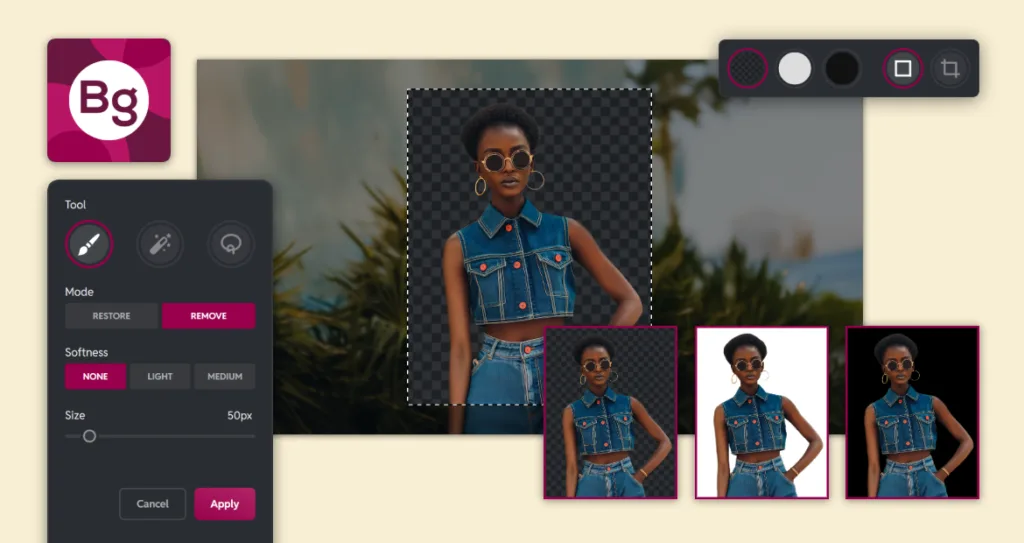
Pixlr Remove BG
Pixlr Remove BG is the fastest option when you need to remove backgrounds from multiple photos in one workflow. It is ideal for ecommerce stores, bulk catalog updates, and seasonal product launches. If you manage a Shopify store with more than one hundred SKUs or prepare product photos for Amazon, Pixlr Remove BG can dramatically speed up your process.
You can upload hundreds of JPG, PNG, or WEBP files at the same time. The AI removes the background from every image automatically so you do not need to edit each photo one by one. You can choose a transparent, white, or black background, and you can also crop away unnecessary empty space with a single click. This keeps your files clean, optimized, and ready for ecommerce platforms.
Once the processing is complete, download everything in a single ZIP file. You will receive transparent PNGs or JPEGs with your selected background color, ready to upload directly to your product feed.
Real Examples of Pixlr Background Remover in Action
Creators, ecommerce sellers, and small businesses use Pixlr background remover to clean up product photos, prepare social media content, and create consistent visuals for their online stores. Whether you need to remove background from product images, prepare assets for TikTok and Instagram, or process a full Shopify catalog, Pixlr offers fast AI tools that help you produce professional results without complex editing.
| Usecase | Best Pixlr feature | How Pixlr helped |
| TikTok makeup tutorial | Pixlr Express → Draw Cutout | Removed a cluttered bathroom background and created a clean product layer for use in TikTok overlays and transitions. |
| Shopify product catalog | Pixlr Remove BG | Processed a large batch of product photos and produced consistent cutouts ready for Shopify and marketplace uploads. |
| Etsy holiday gift guide | Pixlr Express → Magic Cutout | Turned busy, cluttered product photos into clean PNGs suitable for seasonal gift guides and Etsy listings. |
| Instagram carousel ads | Pixlr Express → Shape Cutout | Removed plain walls and prepared photos for branded backgrounds used in high-engagement carousel ads. |
| You Tube thumbnail design | Pixlr Express → AI Remove Background | Instantly removed the background with one click, added a colored outline and shadow for emphasis, and created a clean subject layer ready for text and a new background in the thumbnail. |
Pro Tips for Better Background Removal Results
Getting a clean and professional cutout is easier when your original photo is set up correctly. These simple tips help Pixlr background remover produce sharper edges, smoother outlines, and more accurate results, whether you are editing a single product photo or processing a full ecommerce catalog.
Use a clean and even background
A plain surface such as a white wall, sheet of paper, or uncluttered tabletop makes it easier for the AI to detect the subject. The fewer distractions in the frame, the cleaner the cutout.
Avoid harsh shadows
Shadows create uneven edges that can confuse AI detection. Place your subject near a window or use soft lighting to reduce dark areas and achieve a smoother cutout.
Use Draw Cutout and Keep for fine edges
For hair, fur, lace, feathers, or any delicate texture, start with AI Cutout then refine the edges using Draw Cutout. Use the Keep tool to restore strands or details the AI might have trimmed too closely.
Use Shape Cutout for logos and icons
If you are working with flat graphics or simple shapes, the Shape Cutout tool removes the background in a single drag. This is the fastest way to create clean, transparent PNG files for branding or social media.
Use Pixlr Remove BG for bulk image removal
When working with many product photos at once, Pixlr Remove BG saves time and maintains consistency. Upload multiple images and let the AI handle the background removal automatically.
Download PNGs for transparent backgrounds
PNG files keep transparency intact, which is ideal for overlays, product listings, thumbnails, and design work where you plan to add text, graphics, or a new background later.
These tips help you get the most out of Pixlr Express AI
Cutout, AI Remove Background, and Pixlr Remove BG so you always end up with clean, accurate, high quality results.
AI That Serves Creators, Not Replaces Them
Great product photos and polished content always start with a clean background. It is the foundation of every high-performing visual you see online, from floating jewelry in TikTok product demos to white background candles on Shopify and smooth makeup transitions on Instagram Reels. These images look effortless, but they all depend on one thing. A background that does not distract and lets the subject shine.
This is why we built Pixlr. Creators should focus on their craft, not their software. Whether you sell candles on Etsy, film TikToks in a dorm, or build a brand on Amazon, you should not need expensive tools or complicated workflows just to remove a background.
Pixlr gives you fast, accessible AI features that help you create clean product photos, transparent PNGs, and scroll-stopping visuals in minutes. It does more than remove backgrounds.
It removes barriers and makes creativity easier for everyone.