Art Style Effects Prompts — Turn Any Photo Into a Styled Visual Statement

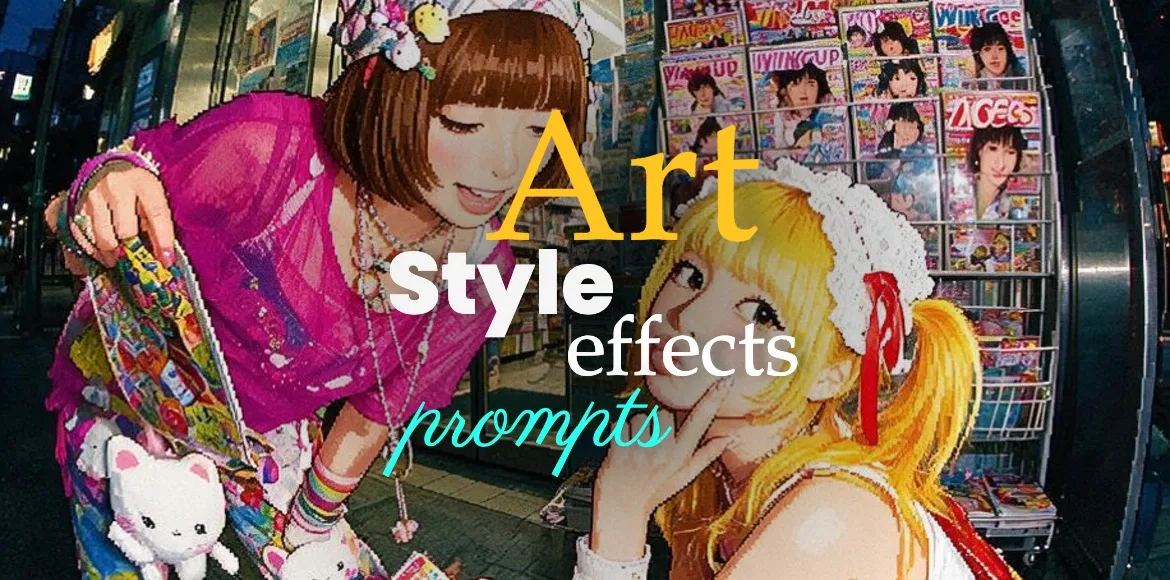
A portrait that looks like a retro video game sprite, frozen in 16-bit glory. A photograph that appears to be folded like a paper map, with creases and shadows adding depth. A face reflected through a shattered mirror, fractured into surreal beauty. That is the creative power of Art Style Effects Prompts. Instead of generating a standard, polished image, you can guide the AI to apply a specific artistic filter—transforming your photo into a piece that feels like a vintage arcade screen, a piece of folded paper art, or a glitched digital collage.
What are Art Style Effects Prompts?
Art style effects prompts are detailed instructions that tell an AI image generator to apply specific visual filters or transformations to your uploaded image. They work by preserving your subject, pose, and composition while completely changing its style and texture. They help you:
- Transform a photo into a new visual medium, like pixel art or a folded paper sculpture
- Apply digital distortions such as glitch effects or shattered glass
- Create a specific retro aesthetic, such as a 1-bit dithered look
- Control how texture, color, and light are stylized
- Communicate a mood, from nostalgic to futuristic
Why it works
- Preservation meets transformation. The core of these prompts is the contrast between the recognizable subject and the complete stylistic overhaul. The eye is drawn to the familiar, while the new texture creates a striking visual hook.
- A single effect defines an era. A 16-bit pixel art treatment instantly evokes the 90s and retro gaming. A glitched halftone effect channels 90s rave culture and Y2K aesthetics. Each effect carries its own narrative and cultural weight.
- Instant artistry from a single prompt. Art style effects simulate complex design techniques—like creating pixel art, paper folded, or digital glitches—that would otherwise require extensive software knowledge or manual crafting. Now, a text prompt can deliver the same effect on any photo.
How to Prompt Art Style Effects on Pixlr
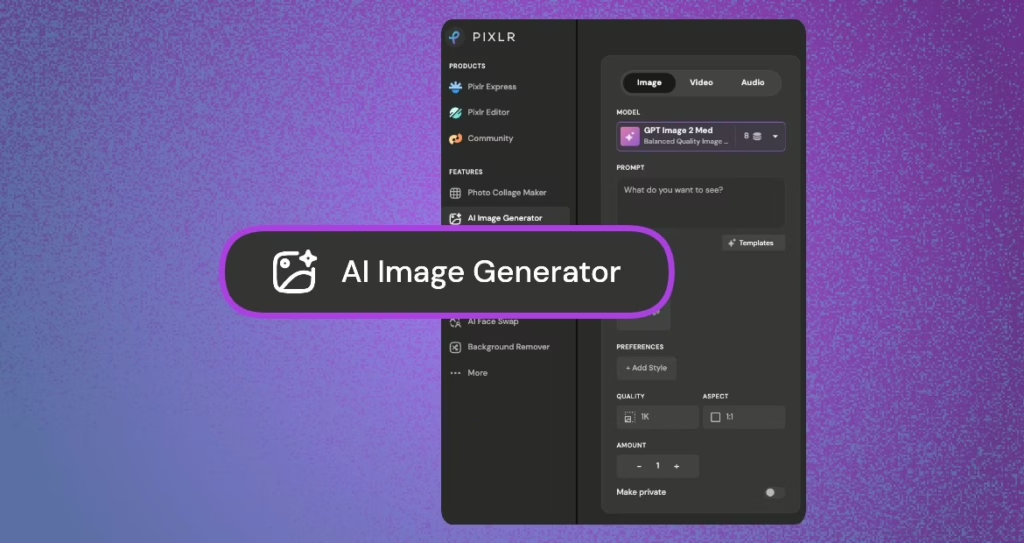
Step 1: Open Pixlr’s AI Image Generator
Choose the best-fit AI Model in Pixlr AI Image Generator for image generation.
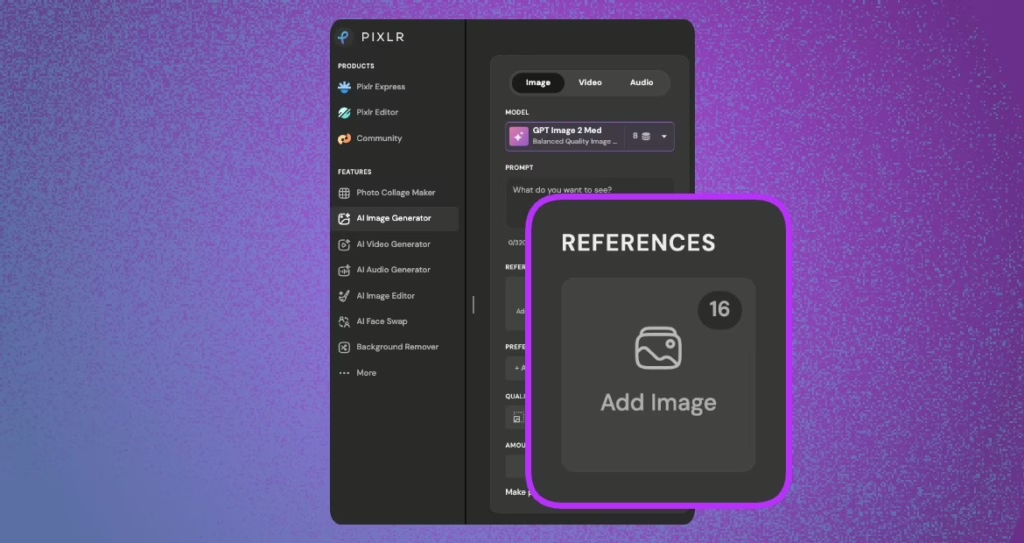
Step 2: Upload your Image
Select the photo you want to transform.
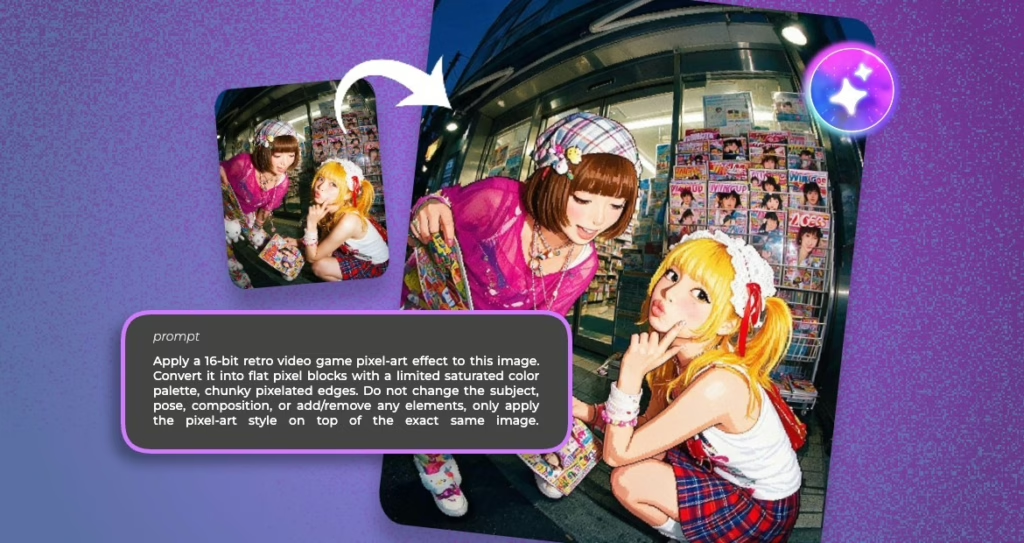
Step 3: Add the art style prompt.
“Apply a 16-bit retro video game pixel-art effect to this image. Convert it into flat pixel blocks with a limited saturated color palette, chunky pixelated edges. Do not change the subject, pose, composition, or add/remove any elements, only apply the pixel-art style on top of the exact same image.”
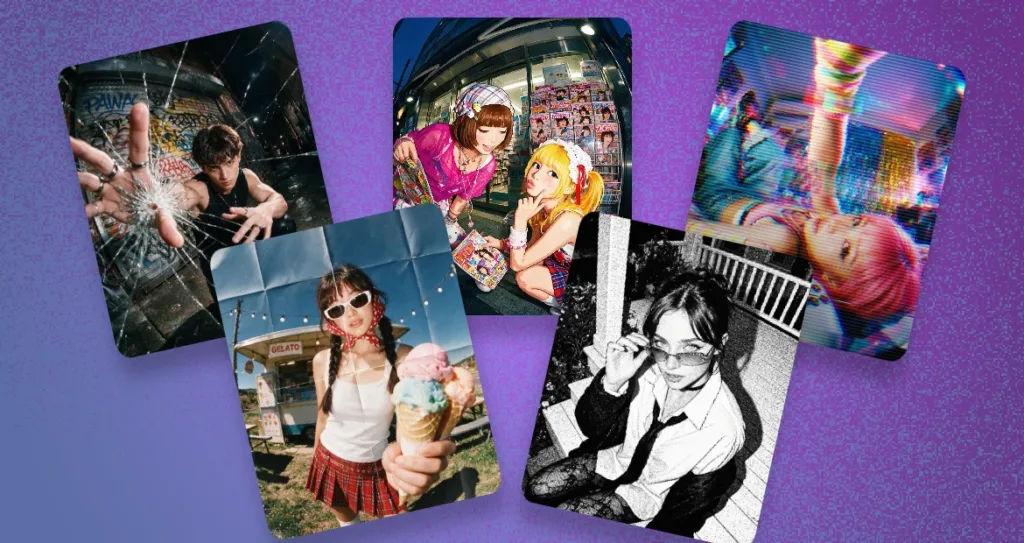
Art Style Effects to Try
1. 16-Bit Sprite – “Apply a 16-bit retro video game pixel-art effect to this image. Convert it into flat pixel blocks with a limited saturated color palette, chunky pixelated edges. Do not change the subject, pose, composition, or add/remove any elements, only apply the pixel-art style on top of the exact same image.”
2. Glitched Halftone – “Apply a glitched halftone effect to this image. Introduce a coarse halftone screen, combined with chromatic aberration—splitting the CMYK color channels and offsetting them to create visible color fringing along the edges. Add a grainy texture over the full frame. Replace the original photo background with a flat, solid color of your choice. Do not change the subject, pose, or composition, only apply the effect.”
3. Radial Motion – “Transform this image into a folded paper. Do not change the base subject or composition, only apply the folded paper style and setting.”
4. Broken Glass – “Transform this image into a shattered glass portrait. Fragment the subject’s face through shards of broken glass, creating a surreal, kaleidoscopic effect. Mimic a cinematic close-up shot taken with a 50mm f/1.4 lens, focusing on one eye. Use neon pink and teal highlights bouncing off the broken glass for a modern, futuristic glow. Do not change the subject’s identity, only apply the fragmented reflection and mood.”
5. Dithered 1-Bit – “Apply a 1-bit dithering effect to this image. Convert it into a high-contrast black-and-white illustration using the Atkinson dithering pattern. Preserve detailed shading through the stippled dot pattern, ensuring the subject remains recognizable. Do not change the subject, pose, or composition, only apply the dithered style and monochrome palette.”
Art style effects prompts can turn a simple photo into a bold visual statement; nostalgic, edgy, surreal, or minimalist. Head over to the Pixlr AI Image Generator, choose the style that matches your creative vision, and start transforming your visuals into art that tells a new story.
Art style effects are just the beginning of what you can create with Pixlr’s AI Image Generator.
Whether you’re a designer looking to prototype a bold new aesthetic, a content creator wanting to make your visuals stop the scroll, or simply someone who loves experimenting with creative tools, Pixlr puts professional-grade artistry at your fingertips. No complex software, no steep learning curve, just pure creative freedom.
Best of all, Pixlr makes it incredibly easy. You don’t need to be a Photoshop expert or a seasoned designer to achieve these stunning transformations. Simply upload your image, paste your chosen prompt, and let the AI handle the rest. With multiple AI models to choose from, including Pro and Ultra modes for maximum detail and texture, you can fine-tune every result until it matches your exact vision.
So why settle for ordinary photos when you can turn them into pixel art masterpieces, shattered glass editorials, or folded paper effects? Head over to Pixlr’s AI Image Generator today, upload your favorite image, and watch as it transforms into something completely unexpected. Whether you’re creating for social media, marketing materials, or personal projects, Pixlr gives you the creative superpowers to bring your boldest ideas to life, one prompt at a time.