
A Guide to Using Negative Prompts
You’ve written a great prompt. The lighting is right, the style is right, but the AI adds a sixth finger, an invented logo on your product, a person in the background of your real estate photo, or a clip that flickers and warps.
The fix is often the prompt you’re not using: the negative prompt.
What Is a Negative Prompt?
A negative prompt is an instruction given to an AI generator, most commonly in image and video tools, telling it what not to include in the output.
Your main prompt describes what you do want. The negative prompt describes what you don’t want: logos, text, watermarks, people, pets, clutter, bad anatomy, flicker, warping.
One nuance worth knowing: it doesn’t literally “delete” those things. It biases the generation away from them. Think of it as guidance or suppression, not a guarantee.
Why Is It Important?
It saves you from wasting credits re-prompting. Without a negative prompt, the usual workflow is: generate, spot the problem, tweak the positive prompt, generate again, spot a new problem, tweak again. Each of those attempts costs you credits, and often you end up with a completely different image than the one you liked. A negative prompt lets you keep the composition you already like and simply subtract the defect from it. One targeted addition instead of five rewrites.
It gives you a second lever. Sometimes the positive prompt is already perfect and rewriting it just breaks the composition. The negative prompt lets you fix the problem without touching what’s working.
It protects real-world use cases. A logo on your product, a person in your listing, or a power line in your wilderness photo makes an image unusable. A short, targeted negative prompt is often the difference between “almost right” and “ready to use.”
It helps with video specifically. Video models have their own failure modes: flickering, morphing faces, warping hands, text that changes frame to frame. Negative prompts address those too.
The Negative Prompt Cheat Sheet: What to Actually Type
The best way to save credits is to start with a “baseline” of terms that address the most common AI flaws. You can use the list below by working these words directly into your main prompt.
Simply phrase them as exclusions using wording like “without,” “do not include,” “no,” or “exclude.” You don’t need to use all of these every time; just add the ones relevant to your specific goal:
- The “Universal” Killers (Use these almost always)
- text, watermark, logo, signature, blurry, low quality, JPEG artifacts, cropped, out of frame, low resolution
- text, watermark, logo, signature, blurry, low quality, JPEG artifacts, cropped, out of frame, low resolution
- Anatomy & Figures (For portraits and people)
- bad anatomy, extra fingers, missing fingers, mutated hands, deformed, disfigured, extra limbs, cloned face, poorly drawn face, bad proportions
- bad anatomy, extra fingers, missing fingers, mutated hands, deformed, disfigured, extra limbs, cloned face, poorly drawn face, bad proportions
- Clean Backgrounds & Real Estate (To protect your usable space)
- people, person, crowds, background clutter, power lines, trash, animals, extra objects, reflections
- people, person, crowds, background clutter, power lines, trash, animals, extra objects, reflections
- Video Specifics (To stop the flicker)
- flickering, morphing, warping, unstable frames, sudden changes, text shifting, deformed hands, floating objects
How to Use It in PIXLR
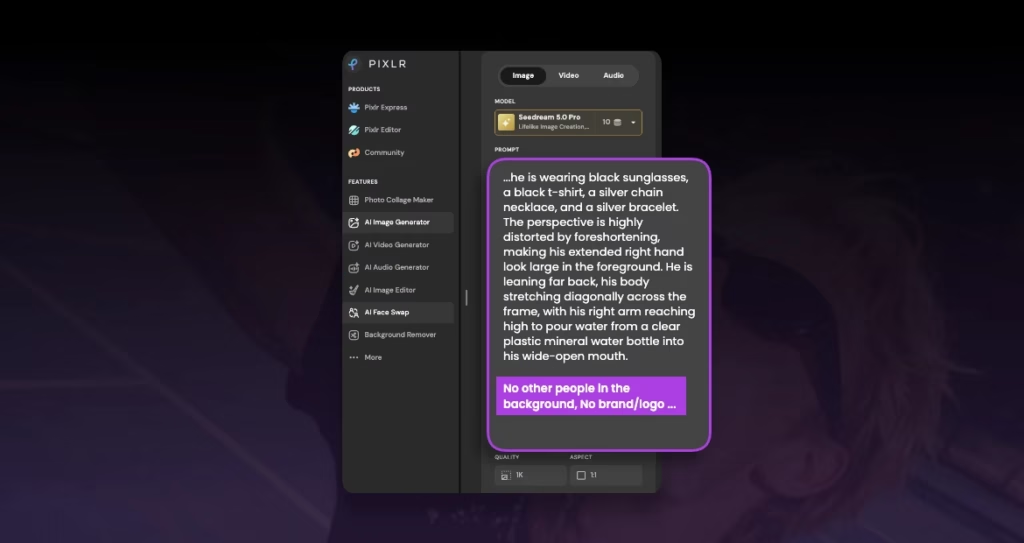
Both PIXLR’s AI Image Generator and PIXLR’s AI Video Generator can include negative prompts (depending on the AI models). Type the things you want to avoid there just logo, text, watermark.
Quick rules:
- Be specific: “Blurry, low contrast, jpeg artifacts” beats “bad quality.”
- Keep it short: A handful of targeted terms works better than a huge list.
- Fix what you see: Generate first, then add a negative term for the actual problem.
- Don’t use negation words: The field already means “avoid these.”
- Keep your positive anchors: If you want natural skin, say “natural skin texture” in the positive prompt.
EXAMPLES:
1. Prevent copyright infringement
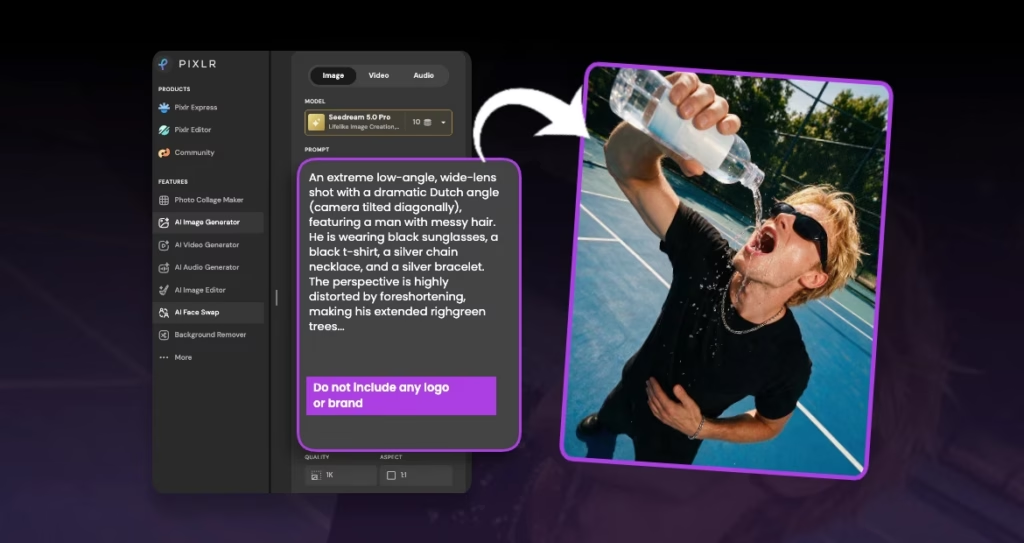
To prevent plagiarism and copyright infringement, generated images must be free of third-party brands, well-known logos, trademarks, and landmarks. Ensure these elements are included in the negative prompt to avoid such issues.
Positive prompt:
An extreme low-angle, wide-lens shot with a dramatic Dutch angle (camera tilted diagonally), featuring a man with messy hair. He is wearing black sunglasses, a black t-shirt, a silver chain necklace, and a silver bracelet. The perspective is highly distorted by foreshortening, making his extended right hand look large in the foreground. He is leaning far back, his body stretching diagonally across the frame, with his right arm reaching high to pour water from a clear plastic mineral water bottle into his wide-open mouth. Water is splashing dynamically out of the bottle and onto his face. His left hand rests near his stomach. The background is an outdoor blue sports court with white lines, a chain-link fence, and green trees.
Negative prompt to add:
Do not include any logo or brand in the image.
2. Distraction-free composition
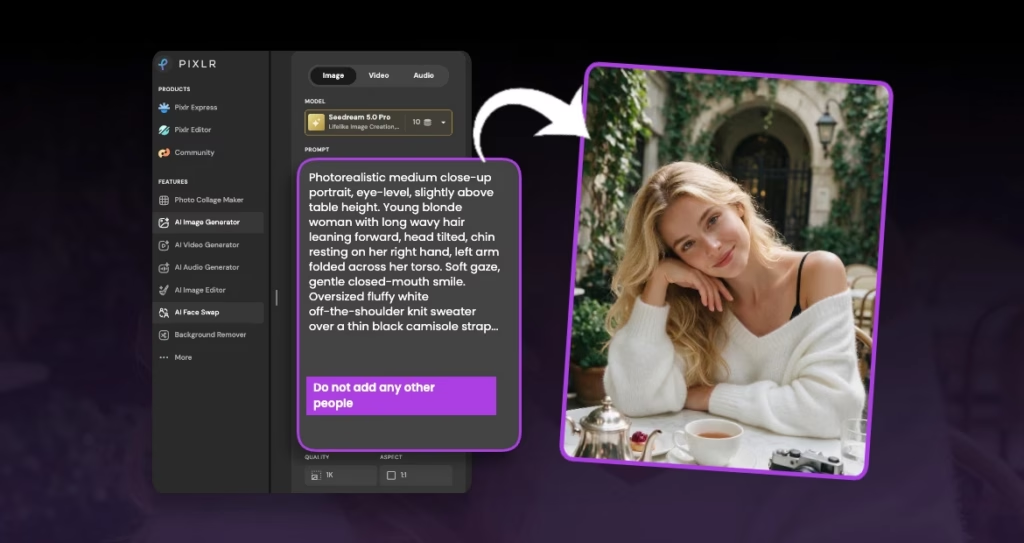
To ensure a clean, distraction-free composition, generated images should exclude people from the background. Including “no people in background” in the negative prompt prevents unwanted figures from appearing and keeps the focus on the main subject.
Positive prompt:
Photorealistic medium close-up portrait, eye-level, slightly above table height. Beautiful young blonde woman with long wavy hair leaning forward, head tilted, chin resting on her right hand, left arm folded across her torso. Soft gaze, gentle closed-mouth smile. Oversized fluffy white off-the-shoulder knit sweater over a thin black camisole strap. Foreground: white marble table with silver teapot, teacup, berry pastry, vintage camera, glass of water. Background: elegant courtyard, ivy-covered stone walls, arched doorway with iron gate, wall lantern, soft daylight, blurred patrons, shallow depth of field.
Negative prompt to add:
Do not add other people or anyone in the background.
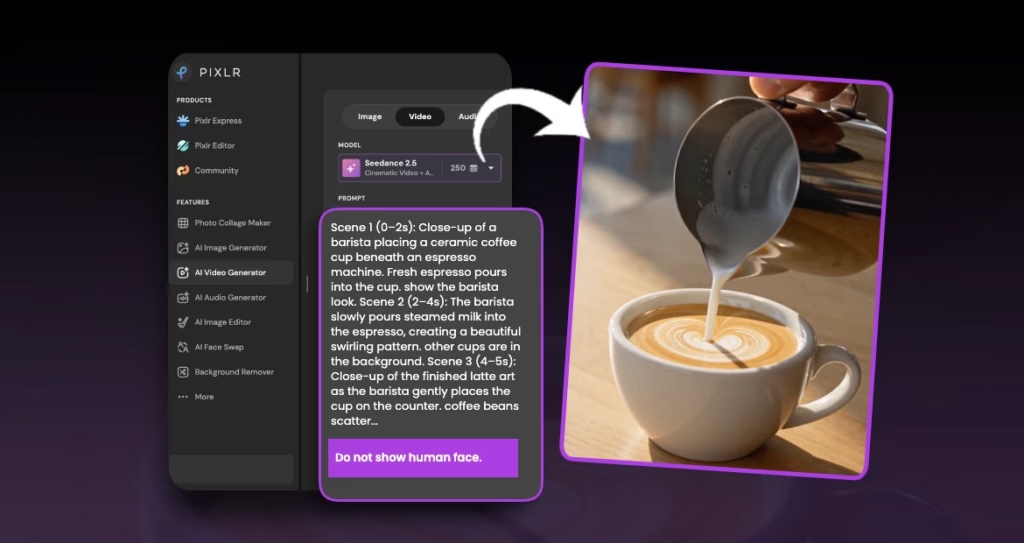
3. Product focused
To maintain a clear product-focused composition, it is advisable to exclude human faces from the scene. Adding “no human face” to the negative prompt helps prevent unintended figures from distracting the viewer and keeps the emphasis on the product.
Positive prompt:
Scene 1 (0–2s): Close-up of a barista placing a ceramic coffee cup beneath an espresso machine. Fresh espresso pours into the cup. show the barista look. Scene 2 (2–4s): The barista slowly pours steamed milk into the espresso, creating a beautiful swirling pattern. other cups are in the background. Scene 3 (4–5s): Close-up of the finished latte art as the barista gently places the cup on the counter. coffee beans scatter on the counter. Visual style: Realistic cinematic coffee commercial, warm morning sunlight, modern minimalist cafe, smooth natural movements.
Negative prompt to add:
No human face, product focus.
Try It Now on PIXLR
Open PIXLR’s AI Image Generator or PIXLR’s AI Video Generator, paste one of the positive prompts above, and run it twice, once without a negative prompt, once with the suggested block.
Compare the two results side by side. That comparison is the fastest way to see what a negative prompt actually does and the fastest way to stop burning credits on regeneration. Keep the block that worked, save it, and reuse it on your next project.